Learn how to troubleshoot the most common Apple Watch issues
Apple Watches make our lives easier in so many ways. Until they stop working, that is. Fortunately, most Apple Watch issues have a simple fix that doesn’t require outside help.
1. This One Trick Will Fix 90% of Your Apple Watch Problems
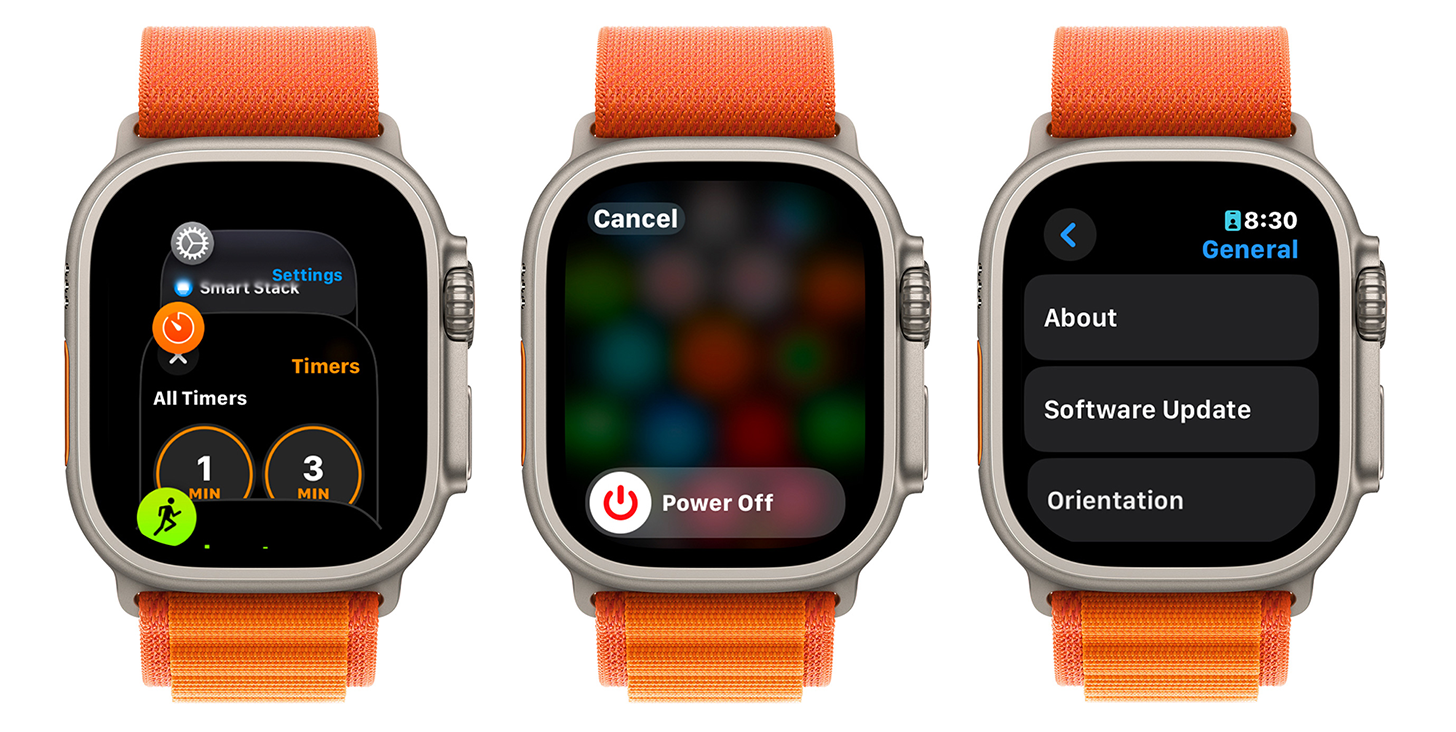
All you need is to turn your watch off and then on again. There’s a reason every IT person will first ask you if you’ve done this simple step before attempting other ways to fix a malfunctioning device—because rebooting your Apple Watch (or closing and re-opening a glitching Apple Watch app) will fix the majority of what ails your electronics. If closing apps or restarting your watch doesn’t work, you should also make sure your Apple Watch is updated to the latest version of watchOS. I will refer to these three steps as CRU (Close, Restart, Update.) If these three steps don’t fix the issue, we’ve got you covered below!
2. Troubleshooting Apple Watch update issues.
Updating your device is one of the basic troubleshooting steps, but what if updating your Apple Watch isn’t working? Before you panic, make sure your iPhone is running the latest iOS—your iPhone and Apple Watch are connected and need to be running the same software version for certain features to work. Next, check your battery life, Wi-Fi connection, and storage—all of these can prevent your watch from updating. Finally, unpairing and re-pairing your watch and iPhone will usually fix Apple Watch not updating when other fixes don't work.
Stop Spam & Wipe Your Data from the Web
Trying to remove yourself from digital lists can feel like trying to stem a flood with a bucket. Let Incogni do the work for you—they deal with databrokers to get you off lists you didn't even know you were on to keep you safe from spam, scams, identity theft, and more. Sign up today and stop those spam calls, emails, and texts right in their tracks.
3. Troubleshooting Apple Watch sync issues.
If your Apple Watch is GPS only, you need it synced to your iPhone to keep it running smoothly. Even a cellular watch needs to be synced for certain features to work. If your Apple Watch is not syncing with your iPhone, it could be because your phone is too far away from your watch or Airplane Mode was enabled.
If that’s not it, restart and update both devices. If that doesn’t fix it, you can go to General settings in your iPhone Watch app, and select Reset to reset your Sync Data. Don’t worry; you won’t lose any data by doing this and you won’t need to re-pair your Apple Watch.
4. Troubleshooting Home Button and display issues
The Digital Crown houses the Home Button and is responsible for scrolling, exiting apps, and opening the Home Screen with all your apps. When the Digital Crown stops working as it should, it can be super frustrating! Likewise when the Side button isn’t working.
Trying the CRU troubleshooting steps first is always a good idea, because even button issues could be software-related. Next, try to physically clean any dirt or debris out of the button. If that still doesn’t help, try to unpair your Apple Watch from your iPhone and then re-pair them.
The display not working is another common paint point. Sometimes tapping the screen works fine but swiping up doesn’t. Once again, try the CRU steps first and make sure that your watch is sufficiently charged. Next, remove any case or screen protector on your watch, as they could be interfering with the touchscreen. Finally, try to check for any damage to the screen. If nothing else works, you’ll have to take your Apple Watch to Apple for further assistance.
If your Apple Watch isn’t responding to touch at all, make sure your hands and Apple Watch screen are clean and remove any touchscreen compatible gloves you’re wearing. Next, make sure there’s nothing obstructing the screen. If all else fails, try unpairing and re-pairing your watch and phone.
5. Troubleshooting Apple Watch notifications
If I had a penny for every complaint about an Apple Watch not getting notifications I’ve received, I’d be wearing a customized 24k Gold-Plated Apple Watch Ultra 2. This common problem happens to everyone all the time, myself included, and understanding why this happens is the key to fixing it.
It is important to note that you will get a notification either on your phone or watch, but not both, and there is no setting to change this. So if you are currently using your iPhone or if your iPhone is unlocked, you will not receive Apple Watch notifications.
If your iPhone is locked but you’re still not getting notifications, it’s time to dive into the settings. First, make sure that Bluetooth is on on both your iPhone and Apple Watch. Next, make sure Theater Mode is off on your watch, it works like Do Not Disturb to silence any incoming notifications, and make sure any Focus modes are also off.
6. Troubleshooting Apple Watch Activity Tracking
Many of us depend on our Apple Watches to track heart rate, steps taken, time slept, and everything in between! If your Apple Watch isn’t tracking activities, try resetting your sync data in the Watch app. It can also be a good idea to re-calibrate your Apple Watch by tracking an outdoor walk or a run of at least 20 minutes. As a last resort, you can reset your fitness data, however, this will wipe all workouts and related fitness data so you might want to take it to an Apple Store to get professional help before you resort to this!
If your watch is tracking activity, but the numbers are inaccurate, make sure your watch band fits snugly around your wrist. A loose Apple Watch won’t track your heart rate accurately. It is also essential for you to keep your height, weight, and age updated in the Health app.
If you notice that your Apple Watch isn’t counting Exercise Minutes, you are not alone. Before we dig into troubleshooting, make sure you understand how Exercise Minutes are counted. Certain activities will only calculate exercise minutes if your heart rate is over a certain number of beats per minute or your pace is at a certain speed. For example, if you are tracking an Outdoor Walk exercise, your pace may factor into tracking exercise minutes. Heart rate permitting, if your pace stays above 3.3 mph (5.3 kph) for an entire minute, you should receive one exercise minute. However, not every Apple Watch exercise has a specific heart rate or pace requirement.
7. How to Fix Other common Apple Watch problems
What to do if your Apple Watch isn’t charging
If this happens after it runs out of battery while you are wearing it, try keeping it on your charger a while longer. Next, check for hardware issues: make sure the sensors and ports are clear of any debris. Plus, don’t forget to check that your charger and outlet are working. Restart and reset your Apple Watch.
What to do if your watch is stuck on the Apple logo
If your Apple Watch is frozen on the Apple logo, doing an Apple Watch reset should be your first step. If your Apple Watch is stuck on the Apple logo even after a hard reset, we’ll teach you a secret Find My trick that may help: Open the Find My app on another Apple device or any browser using the iCloud website. Then use Find My to play a sound on your Apple Watch. If that doesn’t work, try doing a force reset.
NordVPN’s Spring Sale: Get 77% Off + 3 Months Free
Every home needs a VPN, and Nord is offering 77% off a 2-year plan, plus three extra months. This spring, set up this safety measure and let Nord do the work for the next two years without you having to do a thing.
What to do if your Apple Watch alarm isn’t working
Have you ever been late because your Apple Watch alarm didn’t go off? Me too… First, perform the CRU steps, then make sure your iPhone is within Bluetooth range of your watch before you go to sleep (30 feet max and preferably in the same room.) If you set your alarm using Siri, double check or set it manually instead to make sure it was scheduled.
What to do if your Apple Watch display is zoomed in
Zoom is a vision accessibility feature that enlarges the display and makes it easier to see. Unless you don’t actually want your display zoomed in and can’t figure out how to turn it off. You can enable or disable Zoom in the Accessibility settings of the Watch app on your iPhone. You can also zoom in and out by double tapping the display with two fingers if you don’t want to turn of Zoom altogether.
Is there an Apple Watch issue we didn’t cover in the steps above that you need help with? Email OntheWatch@iphonelife.com and let me know!