Hey, Reader! It’s Olena here. After the last troubleshooting edition you all sent in a lot of additional troubleshooting questions, so I’ve decided to dedicate this edition of On the Watch to answering the most common issues. I guarantee you’ve had at least one of these problems or questions, so please enjoy this second edition of troubleshooting tips based on reader concerns.
This Newsletter is Brought to You By:
Incogni Logo
On The Watch ⌚
Everything Apple Watch: Tips, News, Deep Dives, Apps & Gear

Editor's Note

Hey, Reader! It’s Olena here.

After the last troubleshooting edition you all sent in a lot of additional troubleshooting questions, so I’ve decided to dedicate this edition of On the Watch to answering the most common issues. I guarantee you’ve had at least one of these problems or questions, so please enjoy this second edition of troubleshooting tips based on reader concerns.

Happy Reading!

Olena Kagui's picture
Olena Kagui,
On the Watch Editor at iPhone Life

PS. Missed the Spring Cleaning edition? Read it here to learn everything there is to know about giving your watch a refresh!

IN THIS EDITION

  • Tips - Make sure you’re using the right Apple Pay card on Apple Watch 💳
  • Trivia - Has everyone forgotten how to read an analogue clock? ⏰
  • Deep Dive - More problems, more fixes! 🛠️
  • Fun and Interesting Tidbits - American-made iPhones will cost how much? 🤯
🔥 APPLE WATCH TIPS

💳 Change the Default Card on Your Apple Watch.

Pin your most used Timer for quick access.

⚙️ Manage & customize Apple Watch Notifications.

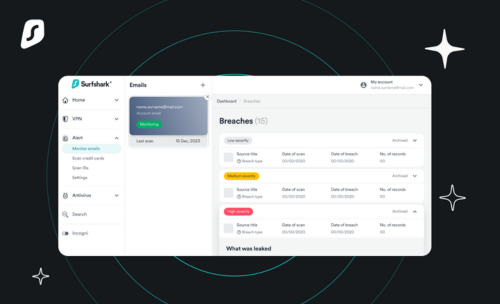
Stop Malicious Code Before It Loads

Don't you hate it when you click on an article, but there are so many ads you can't even read it? We recommend a service called CleanWeb to block ads, trackers, and malware. CleanWeb is part of Surfshark. They're running a birthday deal where you can get their starter package for only $1.99/month plus three months free. It only takes a few minutes to get set up, and you’ll start seeing the benefits right away.

🤓 IT’S TRIVIA TIME!

Gen Z struggles the most with telling time on an analog clock. What percentage of this generation can’t work out the big hand and small hand system?

  • 🤨 11%
  • 🤨🤨 21%
  • 🤨🤨🤨 31%
  • 🤨🤨🤨🤨 41%

🏆 Did you get it right? Scroll down to find out! 🏆

🌊🤿 DEEP DIVE: Fix These Common Apple Watch Problems Quick

We received a lot of positive reader feedback about our troubleshooting newsletter edition, so we decided to expand it beyond our go-to CRU (Close app, Restart device, Update software) method that fixes many but not all issues. Based on the questions we’ve received from On the Watch readers like yourself, we’ve compiled seven additional common Apple Watch problems, and we’ll teach you how to fix them!

1. Fall Detection not working

Fall Detection is a life-saving Apple Watch feature that can notify emergency services and your emergency contacts if you experience a fall. While this feature isn’t foolproof, there are ways to make sure it is turned on and working as it should. Check that it is toggled on under the Emergency SOS settings in your Watch app and select Always On rather than Only on during workouts.

In addition to this, make sure that Wrist Detection is on in your watch’s Passcode Settings. Finally, make sure you are wearing your watch snugly around your wrist so that it can properly detect your heart rate and make sure it doesn’t keep locking itself due to being too loose.

2. Calls or texts only going to one device

Your iPhone and Apple Watch are designed to only get notifications on one device so that you aren’t constantly harassed with alerts. If your iPhone is unlocked, all your alerts will go to your phone. If your phone is locked, you’ll get calls and texts on your watch. If this isn’t the problem, then check out our Apple Watch notification troubleshooting article that will walk you through all the reasons this might be happening and will help you fix it for good!

3. Start a swim or other workout without touching the display

There are many situations where tapping your Apple Watch screen simply doesn’t work—if you are wet, wearing gloves that don’t have the touch screen feature, etc. Plus, if you are trying to reach a personal record, tapping your display to end your workout can waste precious seconds. My favorite solution is to use Siri to start the workout with just your voice. Just make sure you have your Siri Settings adjusted correctly to work hands-free. You can also pause or end a workout using Siri, but my absolute favorite is to use the buttons to pause it at the exact moment I’m done, then stop it by tapping the display at my convenience.

Take Better Photos, Keep Better Memories

Is your creativity limited by your technical skills when it comes to your iPhone camera? Our friends at iPhone Photography School want you to take pictures that not only show what a scene looks like, but also captures how that moment feels. Sign up for the Capture It All course to take pictures you didn't know were possible and get 90% off in the Easter Sale!

4. Watch and phone won’t pair

In order to pair your Apple Watch to an iPhone, the watch cannot be paired to another iPhone (here’s how to unpair it), has to be within Bluetooth range, and can’t have Airplane mode on. Follow these steps to pair your watch and phone. If your devices are paired but not syncing, this article can help.

5. Watch won’t charge past 80%

Apple Watch has a great feature that protects your battery life! The downside: it stops charging your phone at 80%, since charging to 100% every single day can damage your battery. Here’s how to turn off optimized battery charging. If you are one of those people who upgrades their watch every two years or so, or you usually just top it up without charging it fully, you might not need to worry about your Apple Watch battery health depleting over time. If you do want to keep the same watch for a long time, it might be worth keeping this on despite the inconveniences.

6. ECG not working

The ECG (or EKG) Apple Watch feature is very useful but Apple has experienced lawsuits, patent infringement, and antitrust cases against the company because of the feature. Lucky for Apple Watch wearers, none of these were successful, so if your ECG feature isn’t working, it’s an easy fix. Try restarting your Apple Watch and iPhone, make sure you have the ECG feature set up in the Health app, and wear your watch snugly against your wrist and stay perfectly still during the reading.

7. Apple Watch display is too dim

There are several reasons why your Apple Watch display might be too dim. The main culprit is Theater Mode. Sometimes we use Theater Mode instead of Do Not Disturb, but the key difference is that Theater Mode dims your display in addition to muting your alerts. If this isn’t your issue, check out our article covering all the other ways you can brighten up that watch display.

Do you experience any ongoing Apple Watch problems? Email OntheWatch@iphonelife.com and let me know!

This Rare Credit Card Could Help Pay for Your Next Vacation

It sounds crazy. And maybe you’re wondering what the catch is. But the truth is that this rare travel credit card simply has one of the best welcome offers on the market. And if you travel at least twice a year, it could help you get to nearly any of the craziest destinations you dream up — all at a hefty discount. Want to experience this powerful card yourself? Click through to learn more.


🥇 iPhone Life Fitness Challenge Update

Our April Challenge is in full swing, but you can still join! As long as you’ve worn your Apple Watch, the free Challenges app will give you points for all the exercises you’ve already done this month. It’s a great way to come together as a community and motivate each other to reach our health goals by staying active. We’ll be doing a weekly accountability post for premium subscribers in our Insider Facebook group to share struggles and tips and support each other on our journeys.

To join the challenge, download the free Challenges app on your iPhone and enter the code PWHG when prompted. Need help? This article explains the steps and tells you more about the app.

Are you enjoying the challenge? Do you have any suggestions for how we can make it even better? Email OntheWatch@iphonelife.com or comment on the weekly thread in our Facebook group and let me know!

🥇 CHECK YOUR TRIVIA ANSWER 🥇

The correct answer is: 🤨🤨 21%

Many people aged 18 through 24 were raised with time-displaying digital devices and therefore never mastered the skill of traditional time telling. Before you judge—how many of you can use a sundial?

🕺 OTHER FUN AND USEFUL TIDBITS

🏅 PREMIUM CONTENT

If you enjoyed this newsletter, you’ll love all the in-depth how-to content on iPhone Life Insider!

This premium subscription includes:

  • Free online courses taught by expert instructors on Apple Watch, iCloud, apps, productivity, and more
  • In-depth guides on everything from Apple Watch to iPhone photography
  • Daily, bite-sized video tips for Apple Watch and iPhone users
  • A digital subscription to iPhone Life Magazine, where you’ll find articles covering apps and gear, how-tos, news, and more
  • The monthly iPhone Life Security Newsletter covering everything you need to know to keep your digital life secure
  • Access to the ad-free version of the iPhone Life Podcast and exclusive bonus content
  • Expert help with all your most pressing iPhone, Apple Watch, iPad, and Mac questions

Join the Insider community today and save 30 percent!

FIRST TIME READING?

Sign up here to get the On the Watch newsletter in your inbox every other week.

More from our sponsors

Follow iPhone Life

iPhoneLife Logo
Copyright © 2025 Mango Life Media LLC. All Rights Reserved.
Mac, iPad, iPhone, Apple TV, Apple Watch, AirPods, macOS, iPadOS, iOS, watchOS, and Apple are all trademarks of Apple, Inc.
You have opted in to receive this email from iPhone Life magazine
To stop receiving these emails, you may:
Mango Life Media LLC | 402 North B Street | Fairfield, IA 52556