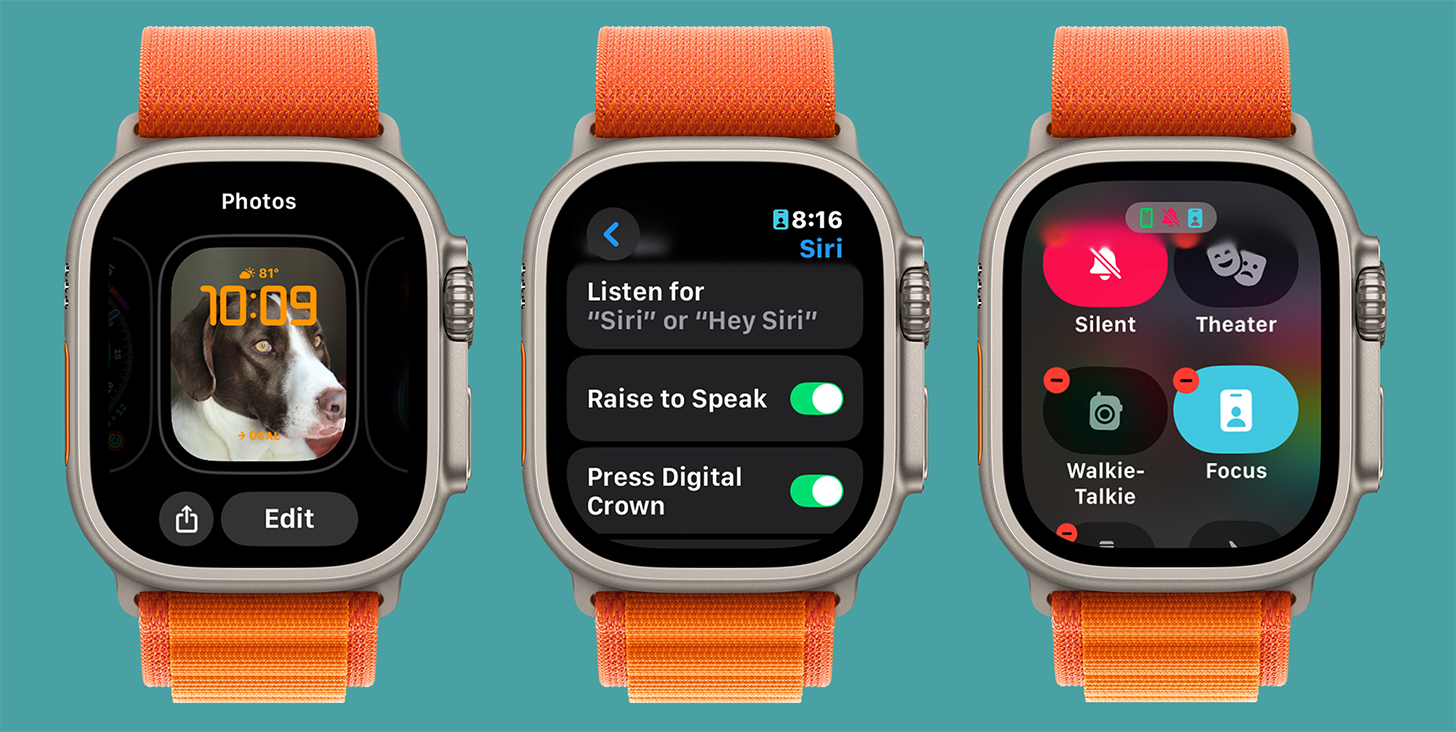
So many of us just use our devices the way they come — flaws and all. While there are limitations to what you can and can’t do with an Apple Watch, there are lots of simple ways to tweak your settings that result in huge improvements in your user-experience. Sometimes, you think that everything is working great, because you don’t realize that it can be even better!
1. Customize Your Watch Face Visually and Practically
Your Apple Watch face is just one of seven customization steps that can completely transform the way you use your watch. We’ve actually dedicated an entire On the Watch edition to customizing your watch face, so make sure to check that out if you haven’t yet.
One extra tip that we didn’t cover in the previous edition, is that you can change the way you see the time on your watch. You can pick between a watch face that’s digital or analog, plus you can use the Watch app on your iPhone to select either military time or an AM/PM clock. Just open the Watch app on your iPhone and go to Clock in the My Watch tab and toggle 24-hour time on or off.
2. Explore Your Siri Settings
Siri can be used to set alarms and reminders, start workouts, check your heart rate, open apps, send messages, and so much more. Certain Siri settings can also unnecessarily drain your watch battery. So figuring out the right setup is vital to having a good Apple Watch experience.
My go-to Siri settings are to toggle off everything except for Press Digital Crown. Having my watch constantly listening for Siri drains my battery, plus I rarely want to talk to Siri via my watch, so it gets in the way of me talking to Siri via my iPhone or HomePods. Raise to Speak is a cool feature, but I find myself accidentally activating it when I don’t want to, so I prefer to simplify my life and keep it off.
3. App Navigation Made Easy
Are you sick of scrolling through an alphabetical list of your apps to find the one you are looking for? Or does that sound way better than looking for and successfully tapping the tiny app icon? The difference here is Grid View (many small icons without the app name showing) and List View (alphabetic list of apps with the app name written out).
What I like about Grid view is that I can drag the icons wherever I want, so even though they are tiny, they can be organized based on my preference. List view is convenient because I don’t need to memorize what my favorite apps look like, because the name is right there. Grid vs. List view is a very personal choice, and I am currently back to using Grid view, although I also like to use Siri to open apps whenever I’m not in a public setting where I don’t want to disturb anyone around me.
4. Personalize Your Control Center
Are there icons in your Control Center that you don’t recognize? Why keep them there and let them get in the way of the features you actually use? Scroll down to the bottom of your Control Center and tap Edit to remove what you don’t need, add what you’re missing, and drag and drop to rearrange their location in your Control Center.
When customizing your Apple Watch’s Control Center, I recommend not overthinking it and going for the minimalist approach — leaving only what you know you use. You can always go back and change things up in seconds if it isn’t working for you.
5. Limit or Boost Apple Watch Notifications
Your Apple Watch is essentially an extension of your iPhone, but that doesn’t mean you want every single iPhone notification to ping on your watch — or maybe it does. One important thing to understand is that the Apple Watch and iPhone are designed to show notifications on one device or the other, not both. If your phone is unlocked, all your notifications will show up there, because you are actively using it. If it is locked, your Apple Watch will be notified because it is likely closer to you than your iPhone.
While the core notification configuration isn’t negotiable (thanks, Apple), you can go into your Notification settings on your iPhone’s Watch app and toggle off any apps you don’t want notifications from on your watch. I recommend going through the list and turning off any notifications you don’t consider time sensitive.
6. Turn Off Auto-Download iPhone Apps
By default, any app you download on your iPhone is downloaded on your watch. The downside is that while it’s easier to download apps on your iPhone, not every iPhone app is one you want on your watch. It took me three years of owning an Apple Watch to turn off auto-downloads and I haven’t looked back. It only takes a second to find the apps in your iPhone’s Watch app, from there you can download them to your watch with a single tap.
7. Have an Apple Watch Ultra? Use the Action Button!
I didn’t realize how much I loved the Action Button on my Apple Watch Ultra until I upgraded to the Apple Watch 10. Now I miss being able to launch apps and features simply by pressing a button. Stopwatch is one of my favorite options for the Action Button. However, if you are more tech-savvy, there is a lot you can do with the Shortcuts option — you can even use it to turn on climate control in your smart car!
What is your favorite way to customize your Apple Watch? Email OntheWatch@iphonelife.com and let me know!