Hey, Insider! It’s Olena here. Did you know that you can navigate your Apple Watch from your iPhone? Sometimes the easiest way to learn to use your Apple Watch features is from your larger and brighter iPhone screen! Read on to find out how!
iPhoneLife Logo
On The Watch ⌚
Everything Apple Watch: Tips, News, Deep Dives, Apps & Gear

Editor's Note

Hey, Insider! It’s Olena here.

Did you know that you can navigate your Apple Watch from your iPhone? Sometimes the easiest way to learn to use your Apple Watch features is from your larger and brighter iPhone screen! Read on to find out how!

Happy Reading!

Olena Kagui's picture
Olena Kagui,
On the Watch Editor at iPhone Life
IN THIS EDITION

  • Tips - Find your iPhone quickly via your watch. 📱
  • Trivia - Is Siri capable of having a potty mouth? 🤬
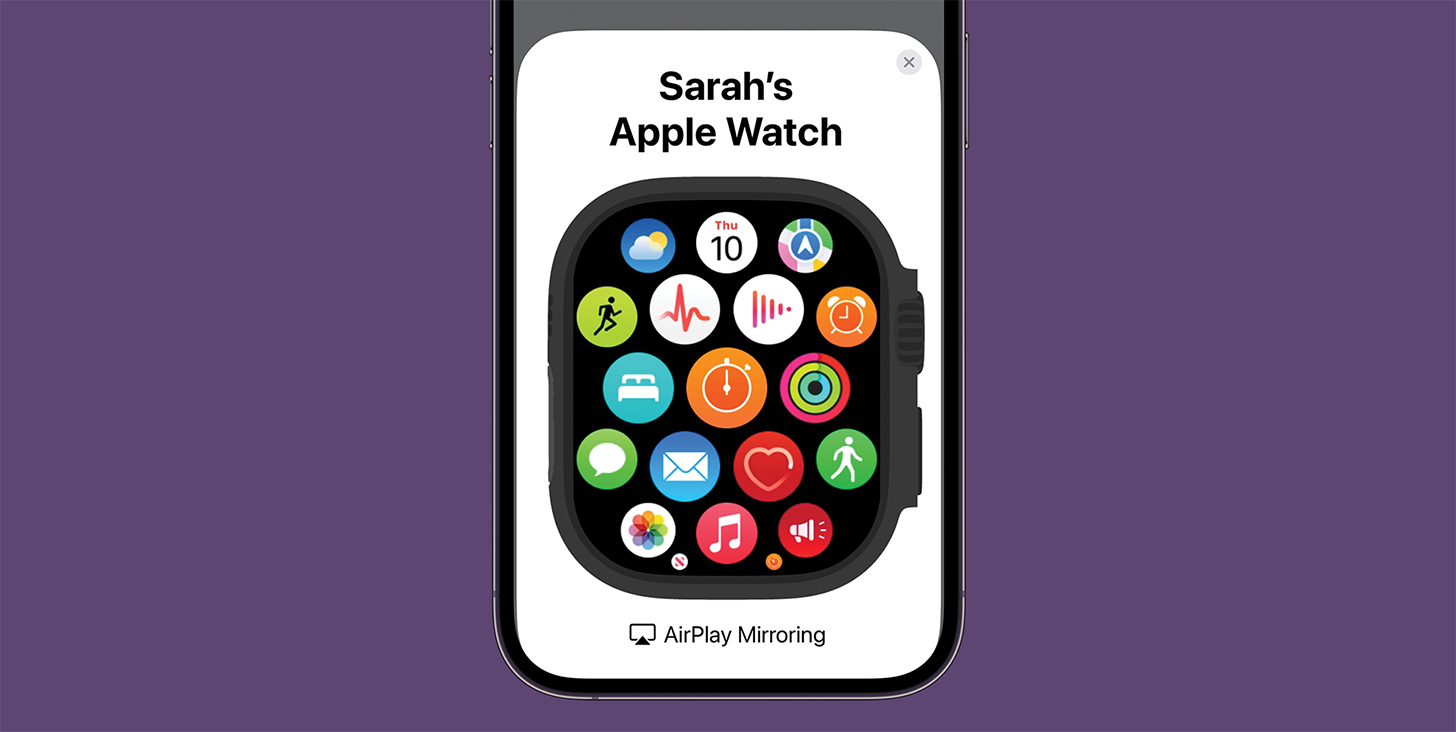
  • Deep Dive - Navigate your watch by mirroring it to your iPhone. 🪞
  • Reader Questions - Getting activity rings back on your Apple Watch. ⌚
  • Health Challenge Update - You can still join our July Challenge! 🏆
  • Fun and Interesting Tidbits - Apple Watch wins at calorie counting accuracy! 🍎
🔥🤯 APPLE WATCH TIPS

🪫 Check your battery life from your iPhone.

📱 Find your phone quickly using your watch.

✍️ Write messages faster using the scribble feature.

🏆😎 Trivia

Our digital assistants are starting to feel more like human companions with every update. Do you know if Siri can say curse words?

  • 🤬It can
  • 🤬🤬 It can’t
  • 🤬🤬🤬 It depends

🏆 Did you get it right? Scroll down to find out! 🏆

🌊🤿 DEEP DIVE: Mirror Your Watch to Your iPhone for Easier Navigation

As iPhone Life’s Apple Watch expert, I’ve tried to learn everything there is to know about this powerful tiny piece of technology. Being small is definitely a benefit but can also be a challenge - which is why I’m here to teach you the easiest ways to navigate your watch: from your iPhone!

Just about anything you can do on your watch can be done via your phone’s Watch app! Curating the perfect watch face and tweaking settings is much easier on the larger iPhone screen than it is directly on your wrist. The Watch app comes pre-installed on your iPhone and can be downloaded from the App Store if you’ve deleted it.

Personally, I only use my Apple Watch rather than the Watch app on my iPhone to customize my Control Center and arrange the apps on my Home screen, but even that can be done on your iPhone if you find it hard to tap and drag the little icons around.

We recently had an Apple Watch course and some participants struggled to navigate their small watch displays while following the class. The solution was to watch the class on a laptop or tablet and use their iPhone and take advantage of the hidden mirror Apple Watch feature on their phone. To do this:

1. Open Settings on your iPhone.
2. Scroll down to Accessibility.
3. Tap Apple Watch Mirroring.
4. Toggle on Apple Watch Mirroring.

A live image of your Apple Watch will appear on the screen! Especially if you have a larger iPhone, this makes it so much easier to see all the tiny options on your watch.

With this trick you can control your Apple Watch by tapping on the image like you would the Apple watch. You can also press the crown and side button, as well as drag your finger up and down over the crown to scroll. You can always practice doing the same thing on your watch later on to give you the muscle memory that will help you navigate your Apple Watch like a pro!

What Apple Watch tasks do you prefer to do on your iPhone? Or do you do everything directly on your watch? Email OntheWatch@iphonelife.com and let me know!

🤔❓ READER QUESTIONS

You asked and we answered!

I deleted my workout rings. How do I get them back?
- Deborah H

A: Hello Deborah, the good news is, it’s impossible to permanently delete your workout rings! It’s likely you just deleted the app. Go to the Apple Store and download the Activities App. You can also add an Activities complication on your watch face!

✉️ Email your questions to OnTheWatch@iPhoneLife.com and we might answer them in a future edition! Questions may be edited for clarity and length.

👟💪 iPhone Life Health 👟Challenge Update

Our July Challenge is in full swing but you can still join until July 24! As long as you’ve been wearing your Apple Watch, your points will be added retroactively as if you joined on day one! The monthly iPhone Life Challenge is a great way to come together as a community and motivate each other to reach our health goals by staying active. We’ll be doing a weekly accountability post for premium subscribers in our Insider Facebook group to share struggles and tips and support each other on our journeys.

To join the challenge, download the free Challenges app on your iPhone and enter the code 9VXD when prompted. Need help? This article explains the steps and tells you more about the app.

The top 20 users of the June challenge are:

1. cbstanford - 2,822 pts
2. Carol Thomas - 2,820 pts
3. jiklaw - 2,678 pts
4. Bonnie H - 2,478 pts
5. rmele - 2,318 pts
6. lcraft464 - 2,287 pts
7. mcalpineal - 2,260 pts
8. charliedornbos - 2,139 pts
9. jeshortmd - 2,011 pts
10. Karen M - 1,823 pts
11. markberentzen - 1,756 pts
12. margieplough - 1,709 pts
13. Kieth M - 1,627 pts
14. Sarah Kingsbury - 1,472 pts
15. Tracy Mac - 1,404 pts
16. mjosslad - 1,299 pts
17. Doug H - 1,271 pts
18. azizaalhouni - 1,263 pts
19. don.craycraft - 1,203 pts
20. fredaguilar - 1,199 pts

Are you enjoying the challenge? Do you have any suggestions for how we can make it even better? Email OntheWatch@iphonelife.com and let me know.


🥇 CHECK YOUR TRIVIA ANSWER 🥇

The correct answer is: 🤬🤬🤬 It depends

Siri isn’t going to drop an F-bomb in the middle of an answer to your inquiry, but depending on your settings, it can read explicit language to you if it’s displayed on your screen.

🕺📰 OTHER FUN AND USEFUL TIDBITS

Missed the most recent editions? Now you can go back and read them!

FIRST TIME READING?

Sign up here to get the On the Watch newsletter in your inbox every other week.

Follow iPhone Life

iPhoneLife Logo
Copyright © 2025 Mango Life Media LLC. All Rights Reserved.
Mac, iPad, iPhone, Apple TV, Apple Watch, AirPods, macOS, iPadOS, iOS, watchOS, and Apple are all trademarks of Apple, Inc.
You have opted in to receive this email from iPhone Life magazine: Insider Daily Email
To stop receiving these emails, you may:
Mango Life Media LLC | 2280 W Tyler Ave Suite 205 | Fairfield, IA 52556